
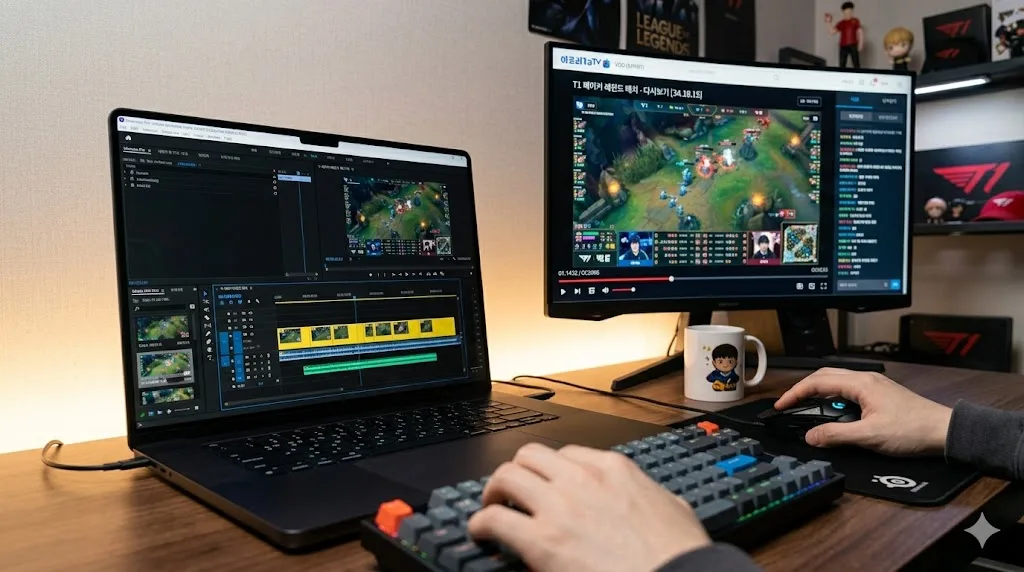
Chzzk has a built-in clip system, but saving those clips to your own device is a different story. Whether you want to preserve a highlight, create content for YouTube or social media, or just keep a funny moment forever, here are the three main ways to do it.
Method 1: Chzzk's Built-In Download Button (When Available)
Some Chzzk clips have a direct download button underneath them. This is the simplest option — click the button, and the clip saves to your device.
The catch: not all clips have this button. Streamers can disable downloads, and many do. Live replay sections often don't have a download option at all. If the button isn't there, move to Method 2 or 3.
Method 2: Clip from a Full VOD Using Vodloader
This is the most flexible method and works even when the built-in download is disabled.
Go to the full Chzzk VOD (not the clip page) and copy the URL. Then open vodloader.com and paste it in.
Before you hit download, use the clip option. Enter a start time and an end time — for example, 1:23:00 to 1:26:00 — and Vodloader will only process that 3-minute segment. No need to download the entire 5-hour stream.
This works on:
- Full VOD replays
- Any public Chzzk video
- Videos where the streamer has disabled downloads
The output is an MP4 file you can play anywhere.
Method 3: Download the Full VOD and Cut Locally
If you need multiple clips from the same stream, it's sometimes faster to download the full VOD once and then cut it yourself.
Use Vodloader to download the complete stream, then use any video editor — CapCut, DaVinci Resolve, iMovie, or even the Windows Photos app — to cut the parts you want.
This method makes more sense when:
- You need 5 or more clips from the same stream
- You want to trim precisely down to the second
- You plan to do editing on top of the clips
Which Method Should You Use?
| Situation | Best Method |
|---|---|
| Chzzk has a download button | Method 1, fastest |
| You need one specific moment | Method 2, clip tool |
| You need many clips from one stream | Method 3, full download |
| The download button is missing | Method 2 or 3 |
Tips for Better Clips
- Note the timestamp before you leave the stream. Chzzk shows a live timer in the bottom corner. If you see a great moment, write it down.
- For clips under 10 minutes, Method 2 is almost always the best option. Processing is fast and you skip downloading gigabytes of footage you don't need.
- If you're clipping for YouTube Shorts or TikTok, check the aspect ratio. Horizontal 16:9 clips can be cropped vertically in most editing apps.
Save Now, Edit Later
The most important thing is capturing the moment while the VOD is still live. Clips disappear, streamers delete replays, and channels go dark. Once it's saved to your device as an MP4, you have it for good.